How to Key Out Backgrounds With Chroma Key and Luma Key
Remove solid colors, white paper, or black backdrops right in your browser using Chroma Key and Luma Key, then export transparent PNG, WebM, or PNG sequences.
TL;DR
- Use Luma Key when a subject sits on bright studio paper or a black backdrop; use Chroma Key when removing a green screen or isolating a saturated hue.
- Switch Output view to Matte while adjusting Threshold, Similarity, Matte choke, and Spill suppression so edges isolate cleanly without halos.
- Export transparent PNG stills, VP8/VP9 transparent WebM animations, or lossless PNG sequences locally; Artfkt desktop adds macOS Subject Cutout for busy scenes.

To key out a clean background and export a transparent PNG or animation right in your browser, use Luma Key for bright studio paper or black backdrops, or Chroma Key for green screens and colored backgrounds. Both run locally on your device in Artfkt’s free browser demo, include an inspectable Matte view, and export transparent PNG, WebM (alpha), or PNG sequence (ZIP) files without an Adobe subscription.


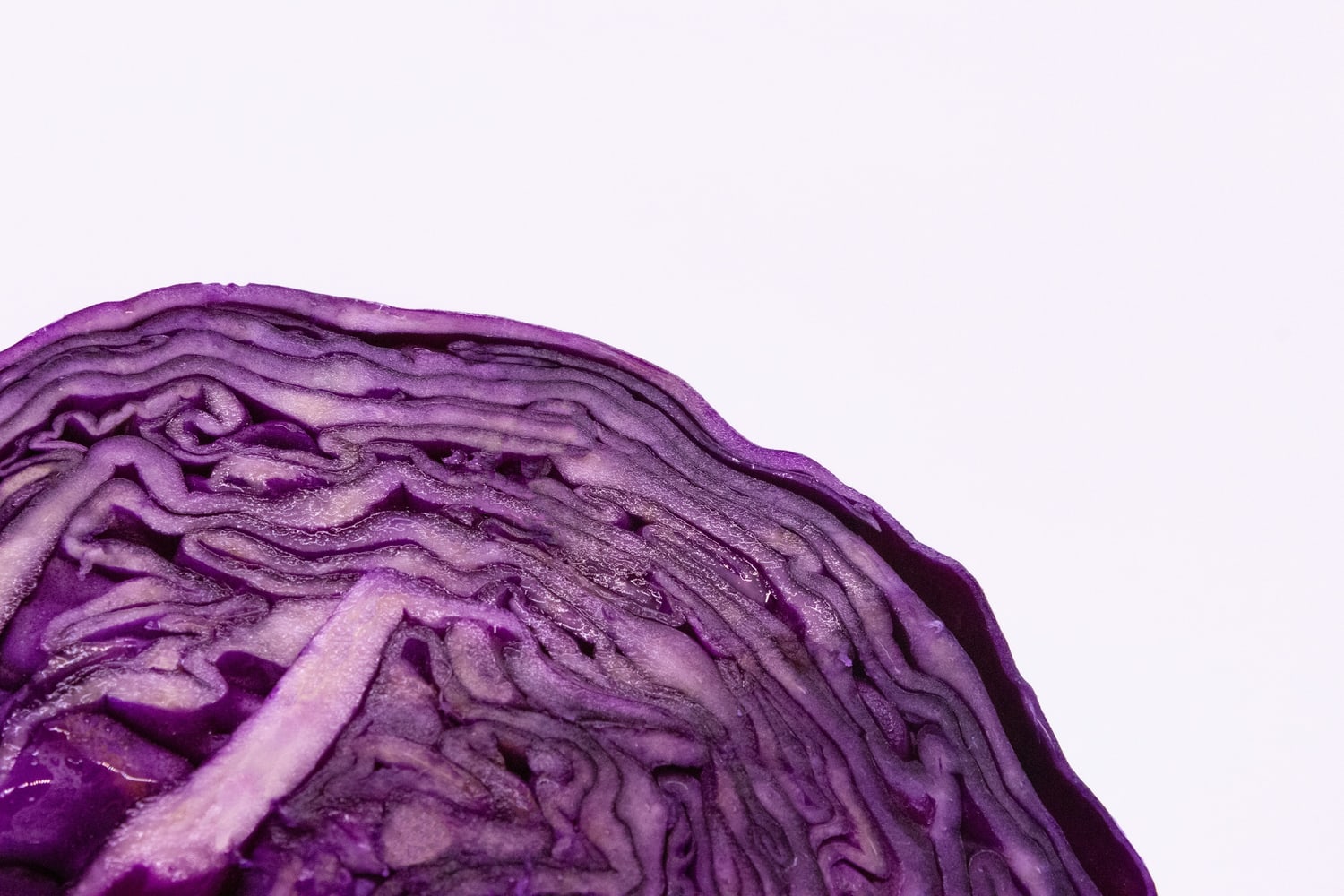
Try Luma Key or try Chroma Key on your own image or video. Choose Open photo in the demo, or download the purple-cabbage practice photo (1500 × 1000 JPG, Ana Prados via Unsplash License; previews place the transparent cutout onto #141720 charcoal so the removed area stands out clearly).
When to use Luma Key vs Chroma Key
Picking the wrong keyer leaves holes inside your subject—especially when pale tones match white paper or warm skin matches a pink backdrop:


- Luma Key compares pixel brightness alone: choose Remove: Bright areas for paper drawings, logos, or white product backdrops, or Remove: Dark areas for black-ground ink, sparks, and overlays.
- Chroma Key targets hue separation (
Key color,Similarity,Smoothness,Matte choke, andSpill suppression): keep Invert matte off for green/blue screens (or click Remove backdrop on a Webcam layer for one-click keying), and turn Invert matte on when you want to keep a single color family like the magenta cabbage leaves above. - Need to cut a person or object out of a busy real-world room? Color and luminance keyers cannot separate subjects that share backdrop colors or textures. In Artfkt Desktop on macOS 14 or later, choose Remove background for on-device subject separation with Brush mask touch-ups and one-click Text behind subject layouts.
Key and export transparent PNG, WebM, or PNG sequences
- Open Chroma Key or Luma Key on a transparent canvas (Document → Background → Transparent) and click Open photo or drop a video clip. Images stay on your device (
/privacy/details analytics). - Switch Output view to Matte while dialing Threshold / Similarity and Smoothness / Edge softness, then switch back to Composite and enable Spill suppression if a green/blue screen tinted your subject’s outline.
- Want a solid die-cut sticker outline or to double-check alpha transparency? Follow PNG background not transparent and sticker outline PNG, or compare full motion compositing in our After Effects alternative guide.
- Open Export with Preserve transparency turned on: save a still PNG, an animated Transparent WebM (where your device/browser supports VP8/VP9 alpha encoding), or a PNG sequence ZIP of numbered transparent frames. Browser demo exports include a small Artfkt mark (
1080pxstill /720panimation); Artfkt Desktop (US$29launch /US$39regular, one-time on Mac & Windows) exports clean full-resolution cutouts, keeps sound, and adds macOS 14+ Remove background and per-effect masks.
| Example | Keyer | Primary settings |
|---|---|---|
| White studio background | Luma Key | Remove Bright areas, Threshold 0.86, Softness 0.08 |
| Isolated pigment keep | Chroma Key | Key #7a2c88, Similarity 0.28, Smoothness 0.12, Invert true |
| Green screen webcam | Chroma Key | Pick backdrop green, Similarity 0.28, Spill suppression 0.50+ |
Cleaning up hair edges, spill, and pinholes
Most rough cutouts come from using a high threshold to chase uneven backdrop light, which eats away stray hair strands and leaves bright skin transparent. Tune edges in order while watching Output view: Matte:
- Smoothness before extreme Similarity: Keep Similarity just high enough to drop the uniform backdrop (
0.22–0.32), then widen Smoothness so flyaway hair and motion-blurred shoulders feather smoothly instead of cutting into jagged stairs. - Spill suppression for colored bounce light: If green or blue screen glare leaves a neon fringe along cheekbones, glasses, or translucent hair, raise Spill suppression in small increments while checking Output view: Composite over a dark
#141720layer. - Restrained Matte choke and honest limits: Add Matte choke only after Similarity and Smoothness settle cleanly, as heavy choke shrinks fine details. Note that shadowed green-screen wrinkles or strong subject color matching the backdrop cannot be solved by sliders alone—flatten backdrop lighting first or crop tighter.
Common questions
When should I choose Chroma Key instead of Luma Key?
Pick Chroma Key whenever hue separates the foreground from a green screen, blue screen, or colored backdrop—or when you want Invert matte on to keep only one vibrant color range. Pick Luma Key when brightness separates subject from background, such as ink drawings on white paper (Remove: Bright areas) or embers, light flares, and logos over pure black (Remove: Dark areas).
Should I export Transparent WebM or a PNG sequence?
Choose Transparent WebM (VP8/VP9 alpha, where supported by your browser/device) when you need a single lightweight clip for browsers, Chromium overlays, or OBS scenes. Choose a numbered PNG sequence ZIP when editing in Premiere Pro, After Effects, or DaVinci Resolve, targeting Safari/iOS playback, or protecting delicate semi-transparent hair strands from video compression artifacts.
Why is my exported PNG background still solid white or black?
Check two settings before saving: set Document → Background → Transparent so the canvas has no opaque backdrop fill, and turn on Preserve transparency inside Export. Otherwise Artfkt composites your keyed cutout onto the active document background color before writing the PNG.
What if I need to remove a cluttered room background without a green screen?
Chroma Key and Luma Key only separate uniform hues or brightness values and leave patchy edges against patterned rooms or furniture. Artfkt Desktop (US$29 launch / US$39 regular, one-time) on macOS 14 or later includes on-device Remove background subject separation with Brush mask touch-ups for stills and scenes, while live webcam layers stay color or luma keyed.
Start with your own photo
Key out backdrops and export transparent WebM or PNG.
Separate bright paper, black grounds, or green screens locally in your browser. Artfkt desktop adds macOS Subject Cutout, clean full-res exports, and saved projects.