How to Invert Colors in an Image Online
Invert an image's colors online with Artfkt. Compare the same photo at different Mix settings, try your own image, and export a PNG for free.
TL;DR
- Open Invert in the free Artfkt demo, choose Use your own image, and export your negative-color result.
- Mix 100 gives the full inversion. Mix 0 restores the original; intermediate values blend the two.
- Use the responsive browser editor on your phone or computer. Desktop Artfkt adds saved editable projects when you want to revisit a composition.

To invert colors in an image online, open Invert in Artfkt, choose Use your own image, and keep Mix at 100 for the full negative effect. Invert reverses the image’s red, green and blue values: light areas become dark, and the colors change with them. Export the result as a PNG in the free browser demo.

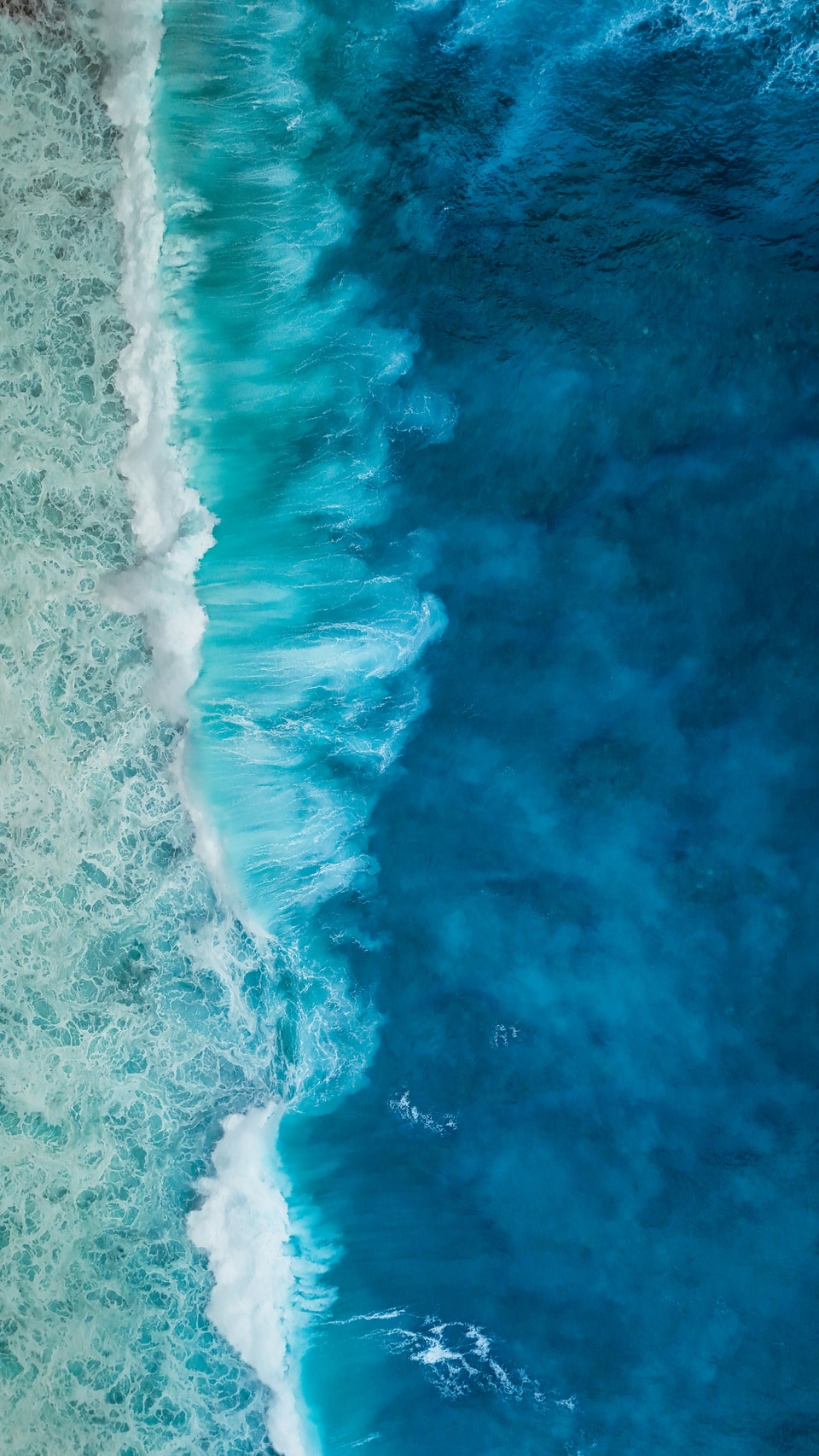
Original, left. Invert at Mix 100, right. Both keep the complete frame; the shoreline and wave detail stay in the same positions.
Invert your picture in the browser
- Open the Invert demo in your browser. It starts with the current colored-pencil sample and Invert already applied.
- Choose Use your own image. Select a PNG, JPG, WebP or HEIC. Your photo replaces the sample while the effect and its settings stay in place.
- Open Active FX and expand Invert to check Mix. If the panel is closed, choose Right in the toolbar. Use 100 for full inversion, or 0 to compare against the original. Keep the artwork in Still while making this comparison.
- Choose Export → PNG. The demo can export your still for free. A small Artfkt watermark is on by default; you can turn it off for free in Settings → Export Settings.
The web editor adapts to phone screens down to 320 px wide, including landscape. Use the bottom navigation to switch between Layers, FX, Edit and Animate.
To reproduce our coastline example, download the practice image and replace the sample with it. Apply only Invert, with Normal blend and Mix 100. No other effects, color adjustments or retouching were used.
Compare full inversion with a blended result
Mix controls how much of the inverted result is combined with the original. It does not choose a different negative palette.

Mix 50, left. Mix 100, right. Only Mix changes; the source, framing, blend mode and other settings stay fixed.
In this photo, the halfway blend becomes flatter and grayer. The blue water and its warm inversion partly counteract one another. Use Mix 100 when the strong negative is the point; a middle value is useful only if you prefer the resulting muted treatment. The 0 position gives you the original again.
The source matters. This blue ocean becomes warm orange-red, and its pale foam becomes dark. A different photo will produce a different palette. Invert follows the source colors; it does not add waves, texture or new detail.
Use the negative in a composition
A negative-color image can become a starting point for a poster or cover. Put a clear headline over it, check its readability, then decide whether the inverted photograph needs to be the whole background or one element in the composition. Follow the editable text guide to build a headline you can revise.
For a palette you choose yourself, the Gradient Map and Duotone guide shows how to map light and dark tones to selected colors. Explore the Color collection for those treatments alongside Invert.
Is this the same as converting a film negative?
This guide demonstrates an artistic negative effect on an existing digital image. It does not demonstrate a film-scanning or calibrated negative-conversion workflow. It also changes the exported picture itself; it is separate from a device’s display-inversion setting.
Try it, then decide what to keep
Try Invert on your image, compare the full result with your original, and export a PNG. The link opens the sample at the effect’s default settings; replacing that sample keeps your controls.
Use Artfkt desktop when you want to save the editable project and return to its image layers, text and effect settings later. A free browser export gives you the finished still; an editable project keeps the composition available for further work.
The examples use Ahmed Saeed’s coastline photograph on Unsplash, proportionally resized. The body comparisons preserve the full frame; the cover shows the same crop from each version. All treatments were rendered with Artfkt’s Invert effect.
Start with your own image
Turn your photo into a negative.
Try Invert and export a PNG for free. Artfkt desktop adds saved editable projects so you can return to the composition and keep developing it.