How to Make a Torn-Paper Collage on Mac
Tear one drawing so the picture below shows through, cut a second drawing into fragments, and add paper-colored shapes in Artfkt for Mac.

To make a torn-paper collage in Artfkt for Mac, stack two or three pictures, open the gaps in the upper picture so the picture below shows through, and cut another picture into fragments. Paper-colored shapes can sit on top as scraps.
Torn Strips and Cut Paper each fragment one image. They do not cut a subject out of a background, and they do not mask another layer. Artfkt runs on Apple Silicon Macs with macOS 13 or later. The free collection demo stays on one image and does not include the Collage collection, these effects, or shapes.
Place the pictures
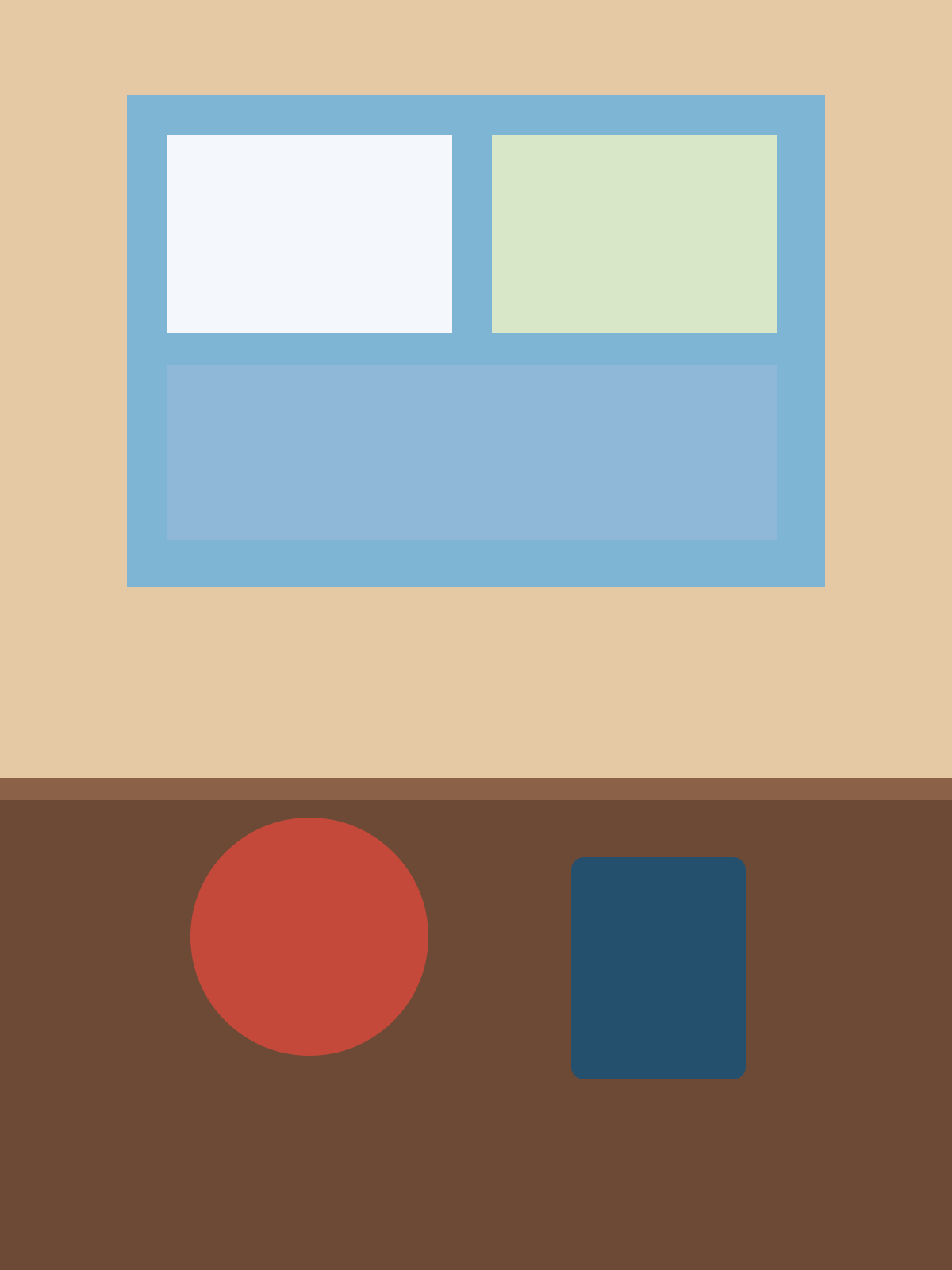
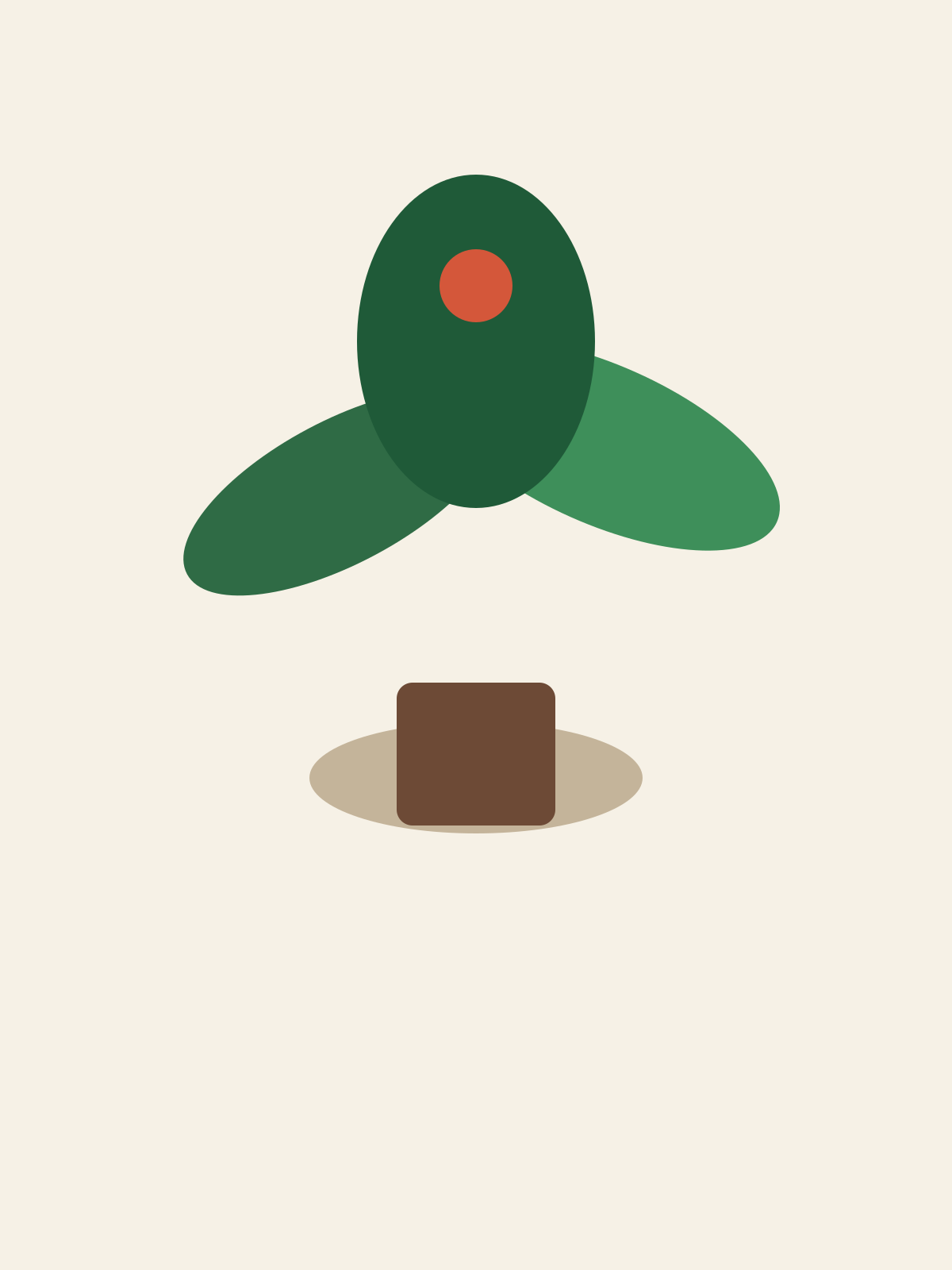
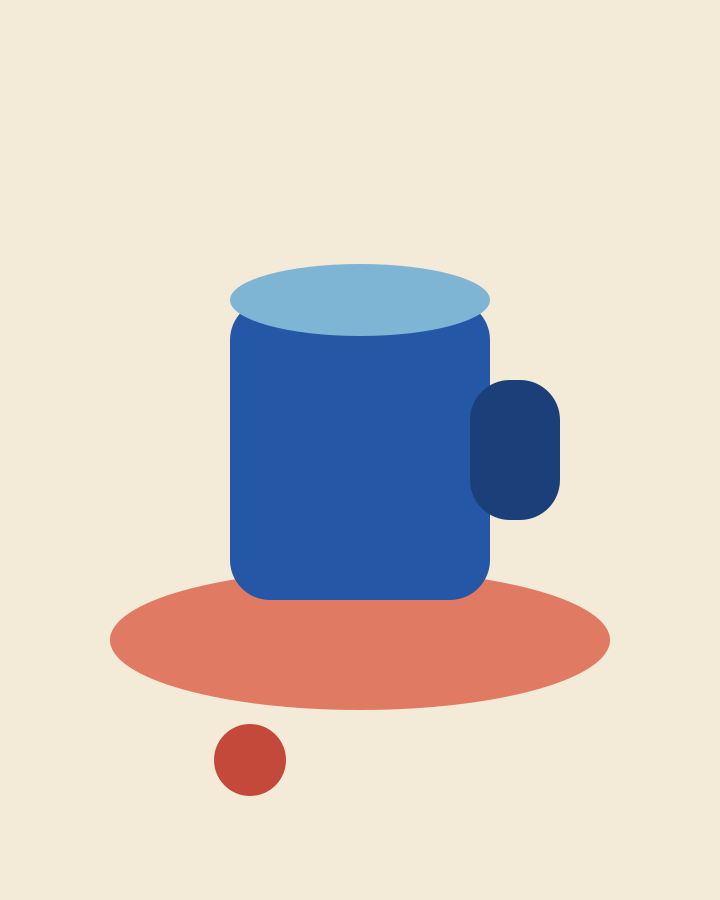
Download the room PNG (1200 × 1600), the plant PNG (1200 × 1600), and the cup PNG (720 × 900). They are drawings made for this exercise. Use your own pictures the same way. Large shapes survive the tears and cuts better than small detail.

Start a new session and add the room first. An empty canvas takes that image’s size, so the collage becomes 1200 × 1600. Leave Scale (%) at 100 and Angle (°) at 0. Set the canvas background to #c4b49a. The full-frame pictures cover that background until a gap is transparent.
Add the plant next, then the cup. Leave the plant centered. For the cup, enter X position 180 and Y position -220.


Leave Shared animation off and playback paused at the start. Treat each poster layer with its own effect stack is the same layer idea with a different finish.
Tear the plant so the room shows through
Select the plant. Search the catalog for Torn Strips and add it to that layer. Turn Animate: Torn Strips off. With Animate on, Scale follows playback instead of the number you enter.
- Scale: 0.220
- Angle: 6.00
- Tear roughness: 0.16
- Separation: 0.09
- Paper: #efe6d4
- Paper opacity: 0%
- Transparency: Cut out
- Seed: 37

Cut out at 0% opacity opens those paper gaps onto the layer below. Reveal image at the same opacity shows this picture’s own color in the gaps instead. Keep the paper color; only the opacity and the transparency mode change what the gap reveals. The effect still does not trace a subject or hide part of another layer.
Cut the cup into fragments
Select the cup. Add Cut Paper and turn Animate: Cut Paper off.
- Scale: 0.160
- Scatter: 0.12
- Fragment rotation: 10.00
- Paper margin: 0.060
- Paper: #f3ead8
- Seed: 19
Leave Paper fully opaque. This picture’s own ground is the same cream, so the margins continue that paper. The fragments shift and turn; they do not become a sticker of the cup with the cream removed.

Add paper-colored shapes
Choose Add → Shape twice. Shapes are desktop-only. Set the first scrap to a rectangle, 300 × 180, fill #efe6d4, X -360, Y 560. Set the second to 220 × 220, fill #c4493a, X 390, Y 480. Leave both strokes off, scale at 100%, and rotation at 0.
Export a PNG
Use Quick Export and choose PNG. These examples match the 1200 × 1600 canvas. Another size is available within the limits of the renderer on your Mac. The PNG is the finished collage. It is not a set of cut files for each scrap.
One expanded effect is remembered while you switch layers. That open state is not saved with the project. This recipe does not use a keyframe timeline.
Read why the studio lives on the desktop.
How this example was made
The three pictures were drawn for this exercise with AI assistance. The treatments shown were rendered by Artfkt’s production renderer at 1200 × 1600, with Animate off and playback at the start. A separate check confirmed that Torn Strips with Paper at 0% and Transparency set to Cut out shows a shape underneath, and that Reveal image shows the treated picture instead. These settings describe the pictured example. They are not permanent defaults, and rendering can vary by device.
Make something unexpected
Keep exploring in Artfkt.
Bring all collections and multiple image layers together in one Mac studio. Build a look, shape its motion, and save your next starting point.