How to Apply a High-Contrast Threshold Effect to a Photo Online
Convert a photo into a crisp two-tone or multi-band threshold cutout in your browser. Tune Threshold cutoff, Edge softness, and Levels, and export a PNG free.
TL;DR
- Threshold compares image luminance against one cutoff to separate every pixel cleanly into flat ink shadows and paper highlights.
- Lower Threshold reveals bright chrome and reflections as silhouette shapes; raising Levels to 3 adds one neutral midtone band.
- Open Threshold in the free browser demo, swap in your own photo, tune Edge softness to avoid jagged edges, and export a PNG.

To apply a clean high-contrast threshold effect to a photo online, compare brightness against a central Threshold cutoff (50%), keep subtle Edge softness (2.0%) so silhouettes avoid stair-stepped jaggies, and pick your ink colors for Dark color and Light color. Threshold belongs to the Color collection and runs directly inside your browser: try Threshold on your photo and export a PNG with no signup or upload to a server.


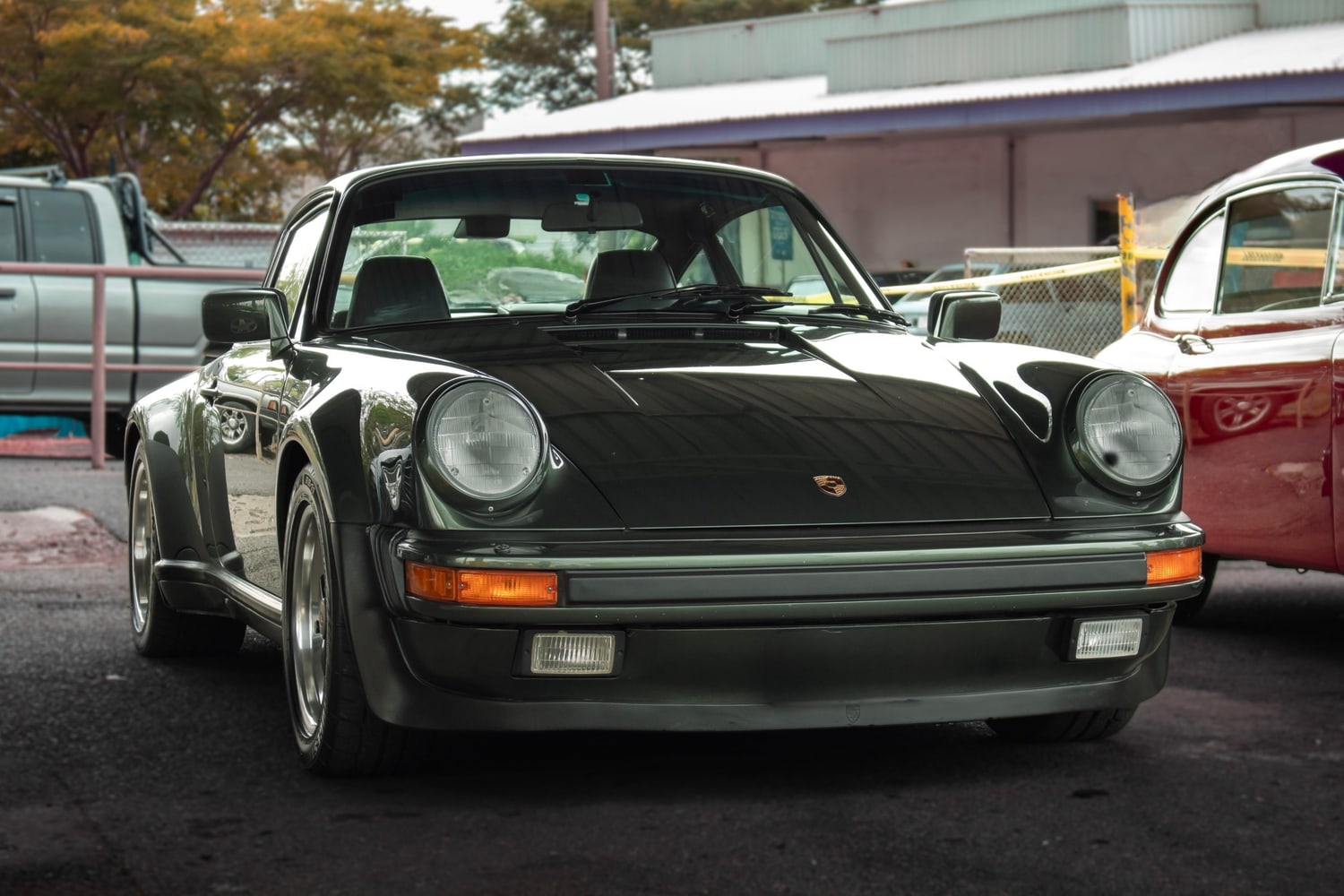
Try Threshold on your image. Click Open photo to replace the sample image while keeping Threshold selected, or download the classic-car practice photo (1500 × 1000 JPG, manfred03 via WordPress Photo Directory, CC0 1.0) to match every comparison on this page.
Adjust Threshold cutoff, Levels, and Invert
Moving a single Threshold slider shifts how much midtone falls into dark ink or light paper, while Levels steps above 2 insert evenly spaced tonal bands between shadows and highlights without losing the graphic look.


For negative-print posters or dark-background stencil layouts, toggle Invert instead of manually swapping Dark color and Light color hex values:

Threshold vs Duotone, Invert, and Posterize
- Threshold vs Invert: Threshold collapses tones into 2 to 6 discrete flat ink levels around one luminance hinge; linear channel reversal stays continuous in how to invert image colors.
- Threshold vs Duotone: When you want smooth midtone gradients between shadow and highlight inks rather than hard stencil shapes, use Gradient Map and Duotone.
- Threshold vs Posterize: Posterize steps red, green, and blue channels across full-color bands (see how to posterize a photo online), whereas Threshold extracts clean luminance silhouettes using any Dark color and Light color swatch.
Step-by-step browser settings
- Open Threshold in your browser and choose Open photo. Editing runs locally on your device; see the privacy policy for site analytics details.
- Under Threshold, keep Edge softness around
1.5%–3.0%for clean anti-aliased silhouettes, or drag it to0.0%for razor-sharp 1-bit pixel edges. - Slide Threshold left (toward
34%) if bright silhouettes get swallowed in shadow, or raise Levels to3–6when two tones hide essential facial or product form. - Click Export → PNG to download a flat image ready for posters, thumbnails, or screenprint separations (browser exports are free up to 1080px with a small Artfkt mark; Artfkt desktop exports full resolution without marks and saves multi-layer projects).
| Control | Value | Role in the example |
|---|---|---|
| Threshold | 50.0% |
Separates dark ink from cream highlights |
| Edge softness | 2.0% |
Smooths stair-step edges along curved trim |
| Levels | 2 |
Strict two-tone graphic output |
| Dark color | #0c0c0e |
Deep charcoal ink |
| Light color | #f7f5f0 |
Warm off-white highlight paper |
| Invert | false |
Positive silhouette orientation |
Start with your own photo
Cut clean two-tone stencils from any photograph.
Tune Threshold cutoff, Edge softness, and Levels in the free browser demo and export a PNG. Artfkt desktop exports clean full resolution and saves projects.